
How to export flash videos from Final Cut Pro for the web
Final cut pro, designed by Apple Inc. is an professional editing,compositing, and special effects software for mac users. It is included in Final Cut Studio, an all-in-one video and audio production suite for mac os x, containing Final Cut Pro, Motion, Soundtrack Pro, DVD studio pro, Color, Compressor, Cinema Tools and Qmaster.
After editing video with final cut pro, you must be going to export video from FCP. And FCP has the easy export feature: you can export your file to iTunes for syncing with iPod, iPhone, and Apple TV; publish to YouTube or MobileMe4; or burn a Blu-ray disc3 or a DVD, with a choice of Apple-designed menu templates. You can also create custom presets in Compressor for use in the Share window.
However, if you wanna export flash video from fcp for the web, get flash video from fcp, prepare flash video from fcp from the internet, or flash video swf with controller and flash player export from Final Cut Pro, there will be a problem, FCP has no option to export flash video flv and swf directly.
Then someone uses ffMPEGx to convert fcp files to flash video, but the results are terrible. And some installs Flash 8 to export flash video from FCP, export from FCP to FLV or export SWF from FCP, but there is still no option to export straight to flv from fcp exporting option or flash 8 is expensive. What’s the best ways to get flash video from final cut pro for the web?


Don’t worry, just following the below steps, you will export flash video flv and swf from fcp successfully under the help of Doremisoft video to flash converter mac.
First, Export movies from FCP
After editing video, prepare to export video from Final Cut Pro. Just click beside “Movie to QuickTime Movie” to open the list of export formats.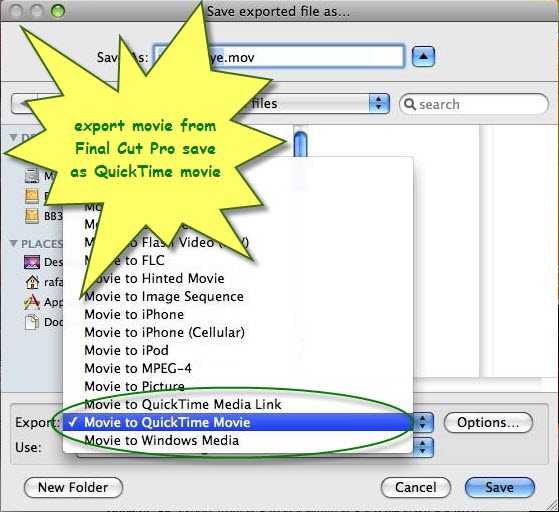
Then your exported files should be quicktime movie in .mov format. Now the problem becomes that how to convert quicktime to flash video on mac or how to convert mov to flash video flv swf on mac. At this time, Doremisoft video to flash converter for mac should be your first choice, which can convert quicktime to flash video flv swf on mac easily and quickly. And it can also edit and customize flash video for the web. With it, you don’t need to make programming to add flash video to website and blog.
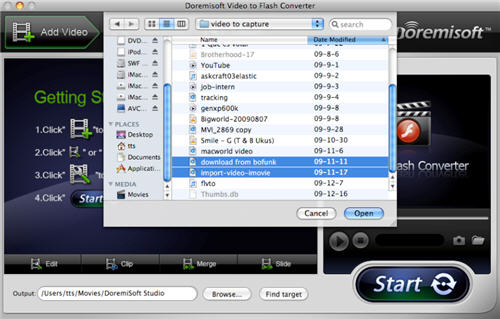
Please refer to how to use doremisoft flash converter mac to convert video to flash flv swf on mac and add flash video to website and blog.
Previous: 8 Tips for create FLV/SWF/HTML web video(Part I) | Next: Share Flip Camcorders Video to website
Flash Products
Relation Guides
-
{relationguides}